Construction Look Ahead Schedule Template in Excel: The 3-Week Plan That Keeps Trades Moving
A general contractor in Ohio lost $14,000 on a single mistake. The framers finished early, the drywall crew showed up on schedule, but the inspector had not signed off on the rough electrical. Drywall could not start. The crew sat for two days, then left for another job. They did not come back for three weeks. The whole project slipped a month, and the GC paid liquidated damages to the owner. The master schedule said everything was fine. The problem was that nobody was looking at the next three weeks in enough detail to catch the missing inspection.
This is exactly the gap a construction look ahead schedule template in Excel is built to close. The master schedule, the big Gantt chart with hundreds of bars stretching across 14 months, is a planning document for the owner and the lender. It is not a tool for running the job week to week. The 3-week look ahead is. It pulls the next stretch of work into the open, forces you to check that materials, manpower, and inspections are actually lined up, and gives every trade a clear answer to one question: what am I doing, and when.
Most superintendents already know the master schedule is too coarse to run trades against. What they do not have is a clean, repeatable way to build the short-interval plan. They scribble it on a whiteboard, send a text, or worse, keep it in their head. When the job has six trades stacked on top of each other, that does not scale. Excel does.
Why the Master Schedule Fails at the 3-Week Level
The master schedule answers "will we finish by the deadline." The look ahead answers "will the framers have a clear deck and approved shop drawings next Tuesday." These are different questions, and the master schedule is bad at the second one.
Here is the structural problem. A master schedule built in MS Project or a Gantt tool shows activities like "Second Floor Framing: 12 days." That single bar hides everything that has to happen for those 12 days to go smoothly: the joists have to be delivered, the crane has to be scheduled, the first-floor inspection has to pass, and the framing crew has to be on site instead of at another job. When any one of those falls through, the bar on the master schedule does not move until it is too late to react.
The look ahead window is short on purpose. Three weeks is close enough that you actually know which crews are coming, what materials are confirmed, and which inspections are booked. It is far enough out that you can still fix a problem. A material that ships in 10 days is a phone call today and a crisis if you find out about it the morning the crew arrives.
Consider the cost difference between catching a problem in the look ahead versus catching it on the job site:
| Problem | Caught in Look Ahead (3 weeks out) | Caught Day-Of |
|---|---|---|
| Material not ordered | Expedite, pay $200 rush fee | Crew idle 1-2 weeks, $3,000+ lost |
| Inspection not booked | Schedule it, no cost | 2-day stall, trade leaves for other job |
| Two trades in same area | Resequence, no cost | Crews fight for space, both slow down |
| Crew double-booked | Confirm or find backup | No-show, schedule slips a week |
The look ahead does not make the work go faster. It removes the dead days where nothing happens because a prerequisite was missing. On a typical mid-size commercial job, killing dead days is worth more than any productivity gain on the work itself.
Building the Look Ahead Schedule Template in Excel
The template has three working parts: an activity grid for the rolling 3-week window, a constraints log that tracks what could block each activity, and a simple status engine that flags trouble before it lands on the job site.
The Activity Grid
Set up your main sheet with one row per activity and columns for the planning data. Keep it to the work that falls inside the next 21 days. Anything beyond that belongs on the master schedule, not here.
| Cell | Column | Example |
|---|---|---|
| A | Activity | 2nd Floor Drywall Hang |
| B | Responsible Trade | Apex Drywall |
| C | Start Date | 07/08/2026 |
| D | Duration (days) | 4 |
| E | Finish Date | =WORKDAY(C2,D2-1) |
| F | Crew Size | 6 |
| G | Predecessor Done? | Yes |
| H | Materials On Site? | No |
| I | Inspection Cleared? | Yes |
| J | Status | FLAG |
The finish date uses =WORKDAY(C2,D2-1) so weekends are excluded automatically. A 4-day activity starting Wednesday finishes the following Monday, not Saturday. The -1 is there because the start day counts as day one. If your crews work Saturdays, switch to =WORKDAY.INTL(C2,D2-1,11) where the 11 code treats only Sunday as a non-working day.
Columns G, H, and I are the heart of the system. They are not decoration. Each one is a yes or no answer to a question that decides whether the activity can actually happen. The predecessor done, the materials on site, the inspection cleared. If any answer is "No," the work is not ready, no matter what the date says.
The Status Engine
The status column turns three yes/no answers into a single signal a superintendent can scan in two seconds. This is the formula that does the work:
=IF(AND(G2="Yes",H2="Yes",I2="Yes"),"READY",IF(C2-TODAY()<=7,"FLAG","WATCH"))
Read it in plain terms. If the predecessor is done, the materials are on site, and the inspection is cleared, the activity is READY. If it is not ready and it starts within 7 days, it is a FLAG, meaning fix this now. If it is not ready but more than a week out, it is WATCH, meaning keep an eye on it but you have time.
The example row above is a FLAG: materials are not on site (H = No) and the start date is inside the 7-day window. That is the kind of line that should make a superintendent pick up the phone before the crew shows up to a job with no drywall to hang.
Add conditional formatting so the status reads at a glance. Select column J, go to Conditional Formatting, and set three text-based rules:
- Cell text contains "READY" fills green
- Cell text contains "WATCH" fills yellow
- Cell text contains "FLAG" fills red
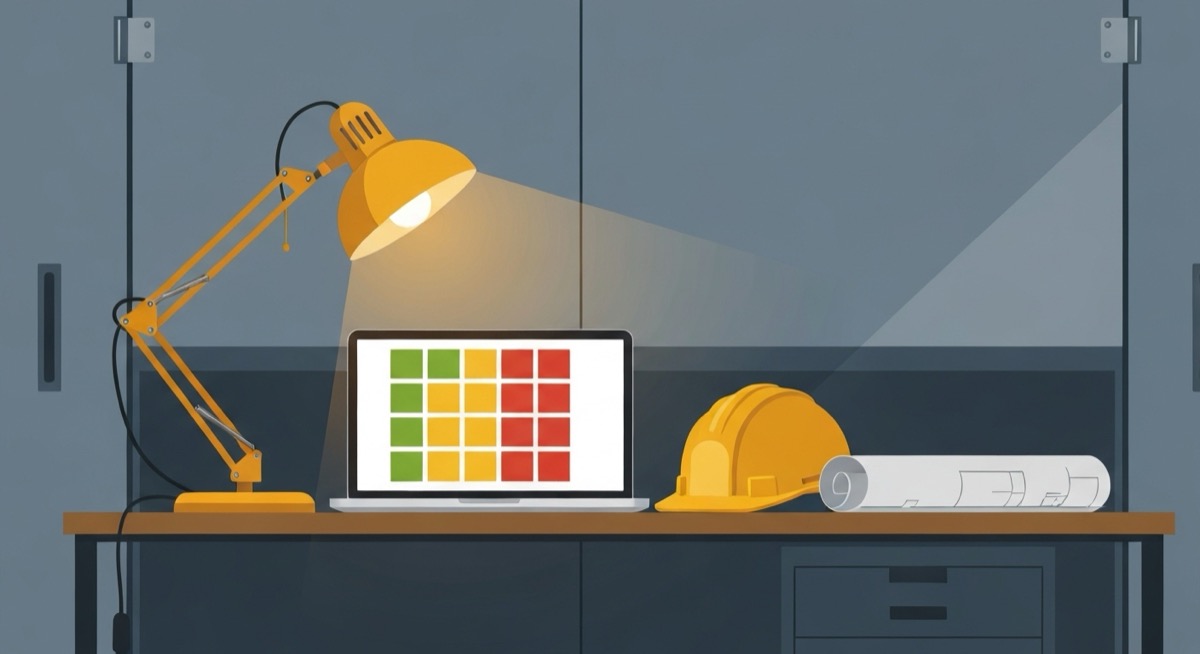
Now the whole look ahead is a traffic light. A clean week is mostly green. A week with three red rows is a week that needs phone calls today. The color does the triage for you.
The Constraints Log
The status engine tells you something is wrong. The constraints log tells you who owns the fix and when it is due. Put this on a second sheet, one row per open constraint:
| Activity | Constraint | Owner | Need-By Date | Status | Days Left |
|---|---|---|---|---|---|
| 2nd Flr Drywall | Board delivery delayed | Apex Drywall | 07/07/2026 | Open | =D2-TODAY() |
| Roof Membrane | Shop drawings unapproved | Architect | 07/10/2026 | Open | =D3-TODAY() |
| Elec Rough-In | Permit revision pending | City | 07/03/2026 | Open | =D4-TODAY() |
The =D2-TODAY() formula in the Days Left column counts down to the need-by date. Sort the log by Days Left ascending and your most urgent constraints float to the top automatically. A negative number means the constraint is already past due, which is the line that should never exist if you are working the log every week.
Flag the overdue ones with a second formula in a helper column: =IF(F2<0,"PAST DUE",IF(F2<=3,"URGENT","OK")). Anything that reads PAST DUE or URGENT goes on the agenda for your weekly coordination meeting, no exceptions.
Running the Look Ahead Every Week
A template nobody updates is worse than no template, because it gives false confidence. The look ahead only works as a habit. Here is the weekly rhythm that makes it stick.
Thursday: Build Next Week Into the Window
Every Thursday, roll the window forward. Drop the week that just finished and pull the new third week off the master schedule into the activity grid. This is when you copy activities from the master and break them down into the real, dated tasks each trade will actually perform. "Second Floor Framing: 12 days" becomes five specific lines with start dates, crew sizes, and constraint columns.
Friday: Confirm With Trades
Send each foreman their slice of the look ahead. Use =SUMIFS to pull a per-trade summary so you are not forwarding the whole sheet to everyone:
=SUMIFS(F:F,B:B,"Apex Drywall",J:J,"READY")
This totals the crew-days of ready work assigned to one trade. If it returns zero for a trade you expected on site Monday, you have a gap to close before the weekend. The foreman confirms manpower, you confirm the work is ready, and both sides walk into Monday knowing the plan.
Monday: Run the Coordination Meeting Off the Sheet
The look ahead is the agenda. Walk the FLAG rows first, then WATCH, then confirm READY work is still on track. A 30-minute meeting that works through a one-page look ahead beats a 90-minute meeting where everyone argues from memory. Track one metric over time to know if the system is working:
| Week | Activities Planned | Completed As Planned | PPC % |
|---|---|---|---|
| Week 1 | 18 | 11 | 61% |
| Week 2 | 20 | 14 | 70% |
| Week 3 | 19 | 16 | 84% |
PPC, or Percent Plan Complete, is the single best measure of whether your look ahead is honest. Calculate it with =COUNTIF(K:K,"Done")/COUNTA(A:A) against a column where you mark each activity Done or Not Done at week's end. A PPC below 60% means you are planning work that is not actually ready, so your constraint columns are lying or being ignored. A PPC climbing past 80% means the trades trust the schedule and plan their own manpower around it. That trust is the whole point.
Common Mistakes That Break the Look Ahead
Mistake 1: Making It Too Long
A 6-week look ahead is not a better 3-week look ahead. Past three weeks, your information about crews and materials gets soft, so the extra rows are guesses dressed up as a plan. Keep the detailed window at three weeks. Let the master schedule carry everything beyond it.
Mistake 2: Listing Activities Without Constraints
If your look ahead is just a list of dated tasks with no Predecessor, Materials, or Inspection columns, you have rebuilt a worse version of the master schedule. The constraint columns are what make it a planning tool instead of a wish list. Without them, you find out about the missing material on the morning the crew arrives.
Mistake 3: Not Assigning an Owner to Each Constraint
"Shop drawings unapproved" is not actionable. "Shop drawings unapproved, owner: architect, need-by July 10" is. Every constraint needs a name and a date, or it sits open until it becomes the reason a crew stands around.
Mistake 4: Building It and Never Updating It
The look ahead is a living document on a weekly clock. The Thursday roll-forward and the Monday meeting are not optional. A look ahead that is two weeks stale is a liability, because the dates have moved and nobody trusts it anymore. Work the rhythm or do not bother building it.
From Spreadsheet to a System That Runs the Job
A construction look ahead schedule template in Excel does one thing the master schedule cannot: it forces a check on whether the next three weeks of work are actually ready to happen. Materials confirmed, predecessors done, inspections booked, crews lined up. When those four things are true, the work flows. When one is missing, the look ahead catches it while a phone call can still fix it instead of a crew standing idle on the deck.
The Ohio contractor who lost $14,000 did not have a scheduling problem. He had a coordination problem that a working look ahead would have surfaced three weeks early. The inspection would have shown up as a red FLAG, the constraint log would have named the owner and the date, and the Monday meeting would have closed it out. The drywall crew would have hung board on schedule and the project would have finished on time.
Building the activity grid, the status engine, and the constraints log from scratch takes a few hours and a working knowledge of WORKDAY, IF, SUMIFS, and conditional formatting. If you would rather start with the structure already built and tested, SheetCraft's Construction Budget Tracker includes a short-interval look ahead module wired into the same workbook as your budget, bids, and change orders. Your constraints log, PPC tracking, and per-trade summaries are ready to fill in, so the only thing you bring is this week's plan. Stop running the next three weeks from memory and start running them off a sheet every trade can trust.
Related template
Construction Budget Tracker
Track every line item, change order, and payment across your entire project. Spot a $23K billing discrepancy before it hits your bottom line — not after.
Get the Template — $49